Android フローティングアクションボタンの例 tutorial

今日はAndroidのフローティングアクションボタンについて学びます。FloatingActionButtonについて話し合い、これはMaterial Designガイドラインに含まれている新しいコンポーネントであり、SnackBarはトーストのMaterial Designの代替品です。
Androidフローティングアクションボタン
Androidのフローティングアクションボタンは、画面上の最も重要な機能に重要性を置くために使用されます。それは、ユーザーの注意を引くためのクールでスタイリッシュな方法です。
Android フローティングアクションボタンの概要
私たちのプロジェクトでMaterial Designウィジェットを使用するには、以下のようにしてbuild.gradleファイルに次の依存関係を追加する必要があります。
compile 'com.android.support:design:23.1.1'
FloatingActionButtonウィジェットは、xmlレイアウトで次のように定義されています:
<android.support.design.widget.FloatingActionButton
      android:id="@+id/fab"
      android:layout_width="wrap_content"
      android:layout_height="wrap_content"
      android:src="@android:drawable/ic_dialog_email"
      android:layout_gravity="bottom|end"
      app:elevation="6dp"
      app:pressedTranslationZ="12dp"/>
上記のXMLレイアウトから得られたいくつかの観察結果は次のとおりです。
- FloatingActionButtonはImageViewクラスを拡張しています。これは定義された
android:src属性から明らかです。 - 上記のXMLレイアウトでは、elevation属性がボタンの上に影を落とすために使用され、pressedTranslationZはボタンが押されたときに影が大きくなる原因となります。
FloatingActionButtonはCoordinatorLayout内に配置されています。CoordinatorLayoutは、内部に含まれるビュー間の相互作用を促進するのに役立ちます。これは、スクロールの変化に応じてボタンのアニメーションを説明するのに後で役立ちます。SnackBarは、Toastと比較してより強化されたウィジェットです。SnackBarは以下のように呼び出されます:
Snackbar.make(view, "Replace with your own action", Snackbar.LENGTH_LONG)
                        .setAction("Action", null).show();
別のチュートリアルでSnackBarについて詳しく議論しました。重要な注意: これらのAndroidチュートリアルをしっかりとフォローしてきたなら、新しいビルドツールの更新により、バージョン23.1.1で新しい空のプロジェクトのプロジェクト構造が変更されたことに気付いたはずです。そして、上記のウィジェットは新しいAndroid Studioプロジェクトにデフォルトで存在します。したがって、上記のウィジェットを実装する代わりに、新しいプロジェクト構造を簡単に見てみましょう。
Android フローティングアクションボタンの例プロジェクト構造

ご覧のとおり、新しいXMLレイアウトファイル「content_main.xml」が追加されました。これは以前の「activity_main.xml」と同じです。
Android フローティングアクションボタンの例
新しい activity_main.xml は以下の通りです:
<?xml version="1.0" encoding="utf-8"?>
<android.support.design.widget.CoordinatorLayout xmlns:android="https://schemas.android.com/apk/res/android"
    xmlns:app="https://schemas.android.com/apk/res-auto"
    xmlns:tools="https://schemas.android.com/tools"
    android:layout_width="match_parent"
    android:layout_height="match_parent"
    android:fitsSystemWindows="true"
    tools:context="com.journaldev.floatingactionbutton.MainActivity">

    <android.support.design.widget.AppBarLayout
        android:layout_width="match_parent"
        android:layout_height="wrap_content"
        android:theme="@style/AppTheme.AppBarOverlay">

        <android.support.v7.widget.Toolbar
            android:id="@+id/toolbar"
            android:layout_width="match_parent"
            android:layout_height="?attr/actionBarSize"
            android:background="?attr/colorPrimary"
            app:popupTheme="@style/AppTheme.PopupOverlay" />

    </android.support.design.widget.AppBarLayout>

    <include layout="@layout/content_main" />

    <android.support.design.widget.FloatingActionButton
        android:id="@+id/fab"
        android:layout_width="wrap_content"
        android:layout_height="wrap_content"
        android:layout_gravity="bottom|end"
        android:layout_margin="@dimen/fab_margin"
        android:src="@android:drawable/ic_dialog_email" />

</android.support.design.widget.CoordinatorLayout>
デフォルトでは、ツールバーがアクションバーの代わりとして追加されます。これは、コーディネーター レイアウトの直接の子である AppBarLayout 内に追加されます。AppBarLayout は、折りたたみ、フレックス スペース、およびクイック リターンなどのさまざまなスクロール動作を実現するために使用されます。MainActivity.java は以下のように定義されています:
package com.journaldev.floatingactionbutton;

import android.os.Bundle;
import android.support.design.widget.FloatingActionButton;
import android.support.design.widget.Snackbar;
import android.support.v7.app.AppCompatActivity;
import android.support.v7.widget.Toolbar;
import android.view.View;
import android.view.Menu;
import android.view.MenuItem;

public class MainActivity extends AppCompatActivity {

    @Override
    protected void onCreate(Bundle savedInstanceState) {
        super.onCreate(savedInstanceState);
        setContentView(R.layout.activity_main);
        Toolbar toolbar = (Toolbar) findViewById(R.id.toolbar);
        setSupportActionBar(toolbar);

        FloatingActionButton fab = (FloatingActionButton) findViewById(R.id.fab);
        fab.setOnClickListener(new View.OnClickListener() {
            @Override
            public void onClick(View view) {
                Snackbar.make(view, "Replace with your own action", Snackbar.LENGTH_LONG)
                        .setAction("Action", null).show();
            }
        });
    }

    @Override
    public boolean onCreateOptionsMenu(Menu menu) {
        // Inflate the menu; this adds items to the action bar if it is present.
        getMenuInflater().inflate(R.menu.menu_main, menu);
        return true;
    }

    @Override
    public boolean onOptionsItemSelected(MenuItem item) {
        // Handle action bar item clicks here. The action bar will
        // automatically handle clicks on the Home/Up button, so long
        // as you specify a parent activity in AndroidManifest.xml.
        int id = item.getItemId();

        //noinspection SimplifiableIfStatement
        if (id == R.id.action_settings) {
            return true;
        }

        return super.onOptionsItemSelected(item);
    }
}
AndroidManifest.xml のアプリケーションタグに android:supportsRtl="true" という新しい属性が追加されます。これにより、アプリケーションで右から左へのレイアウトが有効になります。このデフォルトのアプリケーションを実行すると、以下のような出力が得られます:
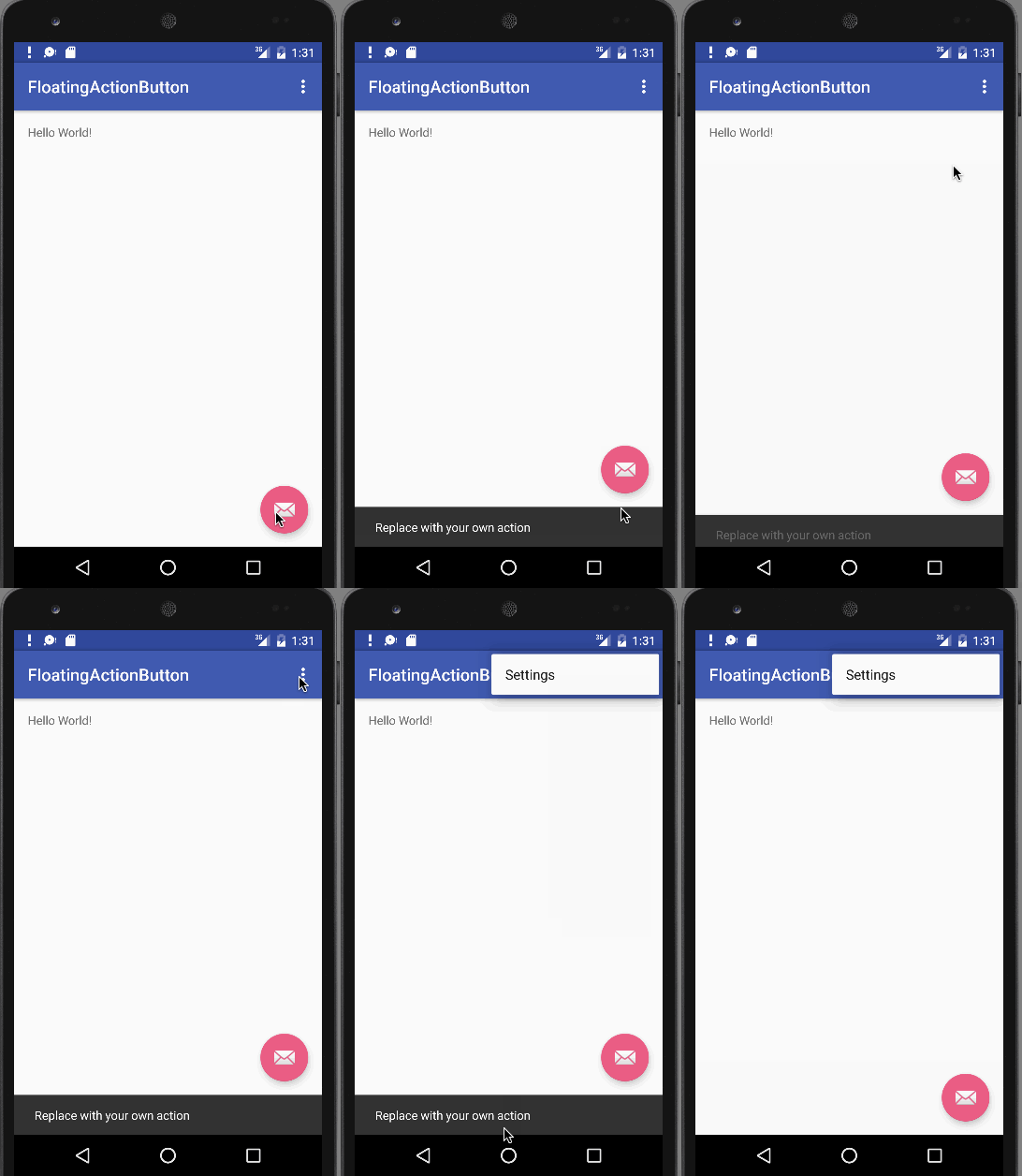
ご覧のとおり、浮動アクションボタンをクリックすると、スナックバーが表示されます。これでこのチュートリアルは終了です。Android Studioで新しいプロジェクトを作成し、これらの機能を見るために実行できます。注意:最新のビルドツールを使用していることを確認してください。参考:Androidリファレンスドキュメント