Ubuntu 20.04にFork CMSをインストールする方法
Ubuntu 20.04にFork CMSをインストールする方法
このチュートリアルはこれらのOSバージョンのために存在します
- Ubuntu 22.04 (ジャミー・ジェリーフィッシュ)
- Ubuntu 20.04 (フォーカルフォッサ)
- Ubuntu 18.04 (ビオニックビーバー)
このページで
- 前提条件
- LAMPスタックをインストールする
- MariaDBデータベースを設定する
- フォークCMSをインストールする
- Fork CMSのためにApacheを設定する
- Fork CMSウェブインターフェースにアクセス
- Let's Encrypt SSLでFork CMSを安全にする
- 結論
Forkはシンプルで軽量、使いやすいコンテンツ管理システムです。Symfonyを基にしており、ウェブブラウザを通じてすべてのコンテンツを管理するためのユーザーフレンドリーなウェブインターフェースを提供しています。また、ウェブサイトをより際立たせるためにカスタマイズ可能な強力なアプリやテーマも提供しています。多くのアプリが揃った機能的なマーケットプレイスがあり、初心者とプロフェッショナルの両方に向けた強力なツールも用意されています。
この記事では、Ubuntu 20.04にApacheとLet's Encrypt SSLを使用してFork CMSをインストールする方法について説明します。
前提条件
- Ubuntu 20.04を実行しているサーバー。
- あなたのサーバーIPにポイントされた有効なドメイン名。
- サーバーにはルートパスワードが設定されています。
LAMPスタックをインストールする
まず、Apacheウェブサーバー、MariaDBデータベースサーバー、PHP、およびその他の必要なPHP拡張をサーバーにインストールする必要があります。次のコマンドを実行することで、すべてをインストールできます:
apt-get install apache2 mariadb-server php libapache2-mod-php php-json php-xml php-cli php-zip php-common php-sqlite3 php-curl php-intl php-mbstring php-xmlrpc php-mysql php-gd wget unzip -yすべてのパッケージをインストールした後、PHP構成ファイルを編集します:
nano /etc/php/7.4/apache2/php.ini必要に応じて以下の設定を変更してください:
memory_limit = 256M
upload_max_filesize = 100M
max_execution_time = 360
file_uploads = On
date.timezone = Asia/Kolkata
ファイルを保存して閉じてから、構成変更を適用するためにApacheサービスを再起動します:
systemctl restart apache2MariaDBデータベースを設定する
まず、MariaDBを保護し、MariaDBのルートパスワードを設定する必要があります。MariaDBのインストールを保護するために、次のスクリプトを実行できます。
mysql_secure_installationこのスクリプトは、ルートパスワードを設定し、匿名ユーザーを削除し、リモートでのルートログインを禁止し、以下に示すようにテストデータベースを削除します。
Set root password? [Y/n] n
Remove anonymous users? [Y/n] y
Disallow root login remotely? [Y/n] y
Remove test database and access to it? [Y/n] y
Reload privilege tables now? [Y/n] y
Once MariaDB is secured, log in to MariaDB shell:
次に、次のコマンドを使ってMariaDBシェルにログインしてください:
mysql -u root -pルートパスワードを入力し、Fork CMS用のデータベースとユーザーを作成します:
MariaDB [(none)]> CREATE DATABASE forkcmsdb;
MariaDB [(none)]> CREATE USER 'forkcms'@'localhost' IDENTIFIED BY 'password';
次に、次のコマンドを使用してFork CMSデータベースに権限を付与します:
MariaDB [(none)]> GRANT ALL PRIVILEGES ON forkcmsdb.* TO 'forkcms'@'localhost';次に、FLUSH PRIVILEGES コマンドを実行して、MariaDB が権限テーブルを再読み込みするようにします:
MariaDB [(none)]> FLUSH PRIVILEGES;最後に、次のコマンドを使ってMariaDBシェルから退出します:
MariaDB [(none)]> EXIT;フォークCMSをインストールする
まず最初に、Composerをシステムにインストールする必要があります。次のコマンドを使用してインストールできます:
curl -sS https://getcomposer.org/installer | php -- --install-dir=/usr/local/bin --filename=composer次の出力が得られます:
All settings correct for using Composer
Downloading...

Composer (version 2.3.3) successfully installed to: /usr/local/bin/composer
Use it: php /usr/local/bin/composer
次に、Apacheのウェブルートディレクトリに移動し、Composerを使用してFork CMSをダウンロードします。
cd /var/www/html/
composer create-project forkcms/forkcms
ダウンロードが完了したら、Fork CMSディレクトリに適切な権限と所有権を設定してください。
chown -R www-data:www-data /var/www/html/forkcms
chmod -R 775 /var/www/html/forkcms
完了したら、次のステップに進むことができます。
Fork CMSのためにApacheを設定する
次に、Fork CMSをインターネットで提供するためのApache仮想ホスト設定ファイルを作成する必要があります。次のコマンドで作成できます:
nano /etc/apache2/sites-available/forkcms.conf次の行を追加してください:
<VirtualHost *:80>
     ServerAdmin [email
     DocumentRoot /var/www/html/forkcms
     ServerName forkcms.example.com
     ServerAlias www.example.com

     <Directory /var/www/html/forkcms/>
          Options FollowSymlinks
          AllowOverride All
          Require all granted
     </Directory>

     ErrorLog ${APACHE_LOG_DIR}/error.log
     CustomLog ${APACHE_LOG_DIR}/access.log combined

</VirtualHost>
ファイルを保存して閉じ、その後Fork CMSをアクティブにし、次のコマンドでApacheのリライトモジュールを有効にします:
a2ensite forkcms.conf
a2enmod rewrite
次に、変更を適用するためにApacheサービスを再起動します:
systemctl restart apache2次のコマンドを使用して、Apacheサービスのステータスも確認できます:
systemctl status apache2次の出力が得られます:
? apache2.service - The Apache HTTP Server
     Loaded: loaded (/lib/systemd/system/apache2.service; enabled; vendor preset: enabled)
     Active: active (running) since Sat 2022-04-02 08:04:06 UTC; 13s ago
       Docs: https://httpd.apache.org/docs/2.4/
    Process: 15441 ExecStart=/usr/sbin/apachectl start (code=exited, status=0/SUCCESS)
   Main PID: 15460 (apache2)
      Tasks: 6 (limit: 2348)
     Memory: 13.4M
     CGroup: /system.slice/apache2.service
             ??15460 /usr/sbin/apache2 -k start
             ??15461 /usr/sbin/apache2 -k start
             ??15462 /usr/sbin/apache2 -k start
             ??15463 /usr/sbin/apache2 -k start
             ??15464 /usr/sbin/apache2 -k start
             ??15465 /usr/sbin/apache2 -k start

Apr 02 08:04:06 ubunt4 systemd[1]: Starting The Apache HTTP Server...
完了したら、次のステップに進むことができます。
Fork CMSウェブインターフェースにアクセス
さあ、ウェブブラウザを開いて、URL http://forkcms.example.com を入力してください。次のページにリダイレクトされます:

ここで、希望する言語を選択し、次へボタンをクリックしてください。次のページが表示されるはずです。

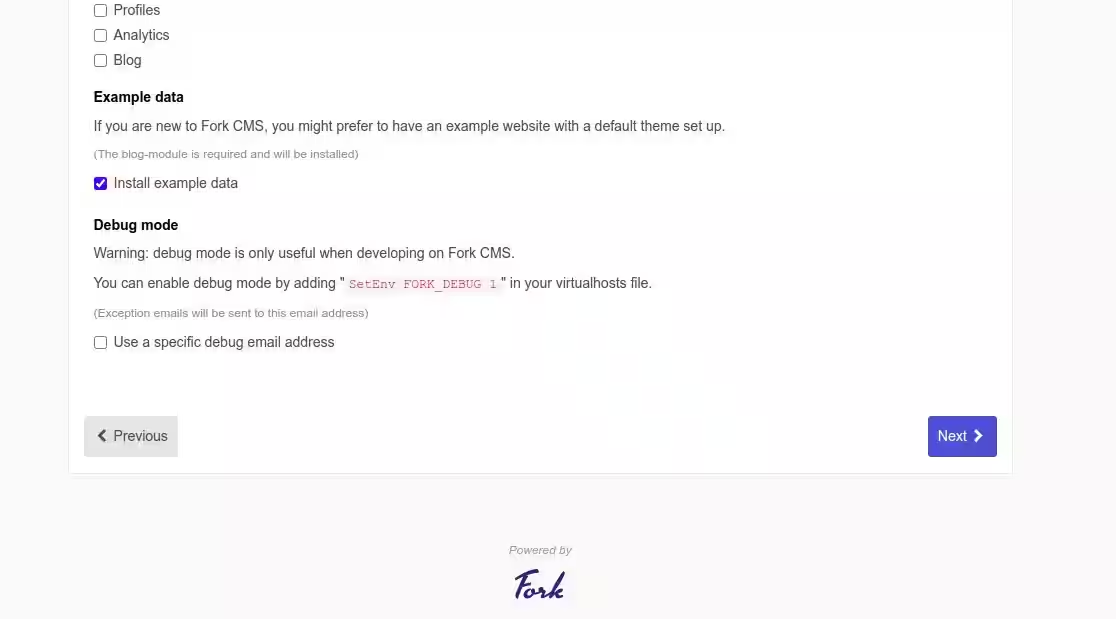
ここで、インストールしたいモジュールを選択し、次へボタンをクリックします。次のページが表示されるはずです:

ここで、データベースの詳細を入力し、次に次へボタンをクリックしてください。次のページが表示されるはずです。

ここに管理者のメールアドレス、ユーザー名、パスワードを入力し、インストールを完了するボタンをクリックしてください。次のページが表示されるはずです:

次に、Fork CMS にログインボタンをクリックしてください。次のページに Fork CMS のログイン画面が表示されるはずです。

さて、管理者のユーザー名とパスワードを入力し、ログインボタンをクリックしてください。次の画像に示すように、Fork CMSのダッシュボードにリダイレクトされます:

Let's Encrypt SSLでFork CMSを安全にする
次に、Let's Encrypt SSLでウェブサイトを保護することをお勧めします。まず、以下のコマンドを使用してCertbotクライアントをインストールしてください:
apt-get install python3-certbot-apache -yインストールが完了したら、次のコマンドを実行して、Let's Encrypt SSLでウェブサイトを保護してください。
certbot --apache -d forkcms.example.comあなたは、以下に示されたサービス利用規約に同意し、メールアドレスを提供するよう求められます。
Saving debug log to /var/log/letsencrypt/letsencrypt.log
Plugins selected: Authenticator standalone, Installer None
Enter email address (used for urgent renewal and security notices) (Enter 'c' to
cancel): [email

- - - - - - - - - - - - - - - - - - - - - - - - - - - - - - - - - - - - - - - -
Please read the Terms of Service at
https://letsencrypt.org/documents/LE-SA-v1.2-November-15-2017.pdf. You must
agree in order to register with the ACME server at
https://acme-v02.api.letsencrypt.org/directory
- - - - - - - - - - - - - - - - - - - - - - - - - - - - - - - - - - - - - - - -
(A)gree/(C)ancel: A

- - - - - - - - - - - - - - - - - - - - - - - - - - - - - - - - - - - - - - - -
Would you be willing to share your email address with the Electronic Frontier
Foundation, a founding partner of the Let's Encrypt project and the non-profit
organization that develops Certbot? We'd like to send you email about our work
encrypting the web, EFF news, campaigns, and ways to support digital freedom.
- - - - - - - - - - - - - - - - - - - - - - - - - - - - - - - - - - - - - - - -
(Y)es/(N)o: Y
Plugins selected: Authenticator apache, Installer apache
Obtaining a new certificate
Performing the following challenges:
http-01 challenge for forkcms.example.com
Enabled Apache rewrite module
Waiting for verification...
Cleaning up challenges
Created an SSL vhost at /etc/apache2/sites-available/forkcms-le-ssl.conf
Enabled Apache socache_shmcb module
Enabled Apache ssl module
Deploying Certificate to VirtualHost /etc/apache2/sites-available/forkcms-le-ssl.conf
Enabling available site: /etc/apache2/sites-available/forkcms-le-ssl.conf
次に、以下のようにHTTPトラフィックをHTTPSにリダイレクトするかどうかを選択します:
Please choose whether or not to redirect HTTP traffic to HTTPS, removing HTTP access.
- - - - - - - - - - - - - - - - - - - - - - - - - - - - - - - - - - - - - - - -
1: No redirect - Make no further changes to the webserver configuration.
2: Redirect - Make all requests redirect to secure HTTPS access. Choose this for
new sites, or if you're confident your site works on HTTPS. You can undo this
change by editing your web server's configuration.
- - - - - - - - - - - - - - - - - - - - - - - - - - - - - - - - - - - - - - - -
Select the appropriate number [1-2] then [enter] (press 'c' to cancel): 2
2を入力してEnterキーを押し、あなたのウェブサイトにLet's Encrypt SSLをインストールしてください:
Enabled Apache rewrite module
Redirecting vhost in /etc/apache2/sites-enabled/forkcms.conf to ssl vhost in /etc/apache2/sites-available/forkcms-le-ssl.conf

- - - - - - - - - - - - - - - - - - - - - - - - - - - - - - - - - - - - - - - -
Congratulations! You have successfully enabled https://forkcms.example.com

You should test your configuration at:
https://www.ssllabs.com/ssltest/analyze.html?d=forkcms.example.com
- - - - - - - - - - - - - - - - - - - - - - - - - - - - - - - - - - - - - - - -

IMPORTANT NOTES:
 - Congratulations! Your certificate and chain have been saved at:
   /etc/letsencrypt/live/forkcms.example.com/fullchain.pem
   Your key file has been saved at:
   /etc/letsencrypt/live/forkcms.example.com/privkey.pem
   Your cert will expire on 2022-07-23. To obtain a new or tweaked
   version of this certificate in the future, simply run certbot again
   with the "certonly" option. To non-interactively renew *all* of
   your certificates, run "certbot renew"
 - If you like Certbot, please consider supporting our work by:

   Donating to ISRG / Let's Encrypt:   https://letsencrypt.org/donate
   Donating to EFF:                    https://eff.org/donate-le
結論
おめでとうございます! ApacheとLet's Encrypt SSLを使用して、Ubuntu 20.04サーバーにFork CMSを正常にインストールしました。これでFork CMSを探索し、Fork CMSの直感的なウェブインターフェースから自分のウェブサイトを構築を始めることができます。