Ubuntu 18.04にChef Server、Workstation、Chef Clientをインストールする方法
Chefは、インフラストラクチャをコードとして定義するために使用されるRubyベースの構成管理ツールです。これにより、ユーザーは多くのノードの管理を自動化し、それらのノード間での一貫性を維持することができます。レシピは、管理対象ノードの望ましい状態を宣言し、Chef Workstationパッケージを使用してユーザーのワークステーションで作成されます。あなたのレシピはChefサーバーを介してノードに配布されます。それぞれのノードにインストールされたChefクライアントは、そのノードに対応するレシピを適用する責任を負います。このガイドでは、ChefサーバーとChef Workstationをインストールおよび構成する方法を示します。また、Chefで管理するためのノードをブートストラップします。
このチュートリアルでは、あなたは学びます:
- Chefサーバーのインストールと構成
- シェフユーザーと組織を作成する
- Chef ワークステーションをインストールして構成する
- ナイフの設定とクライアントノードのブートストラップ
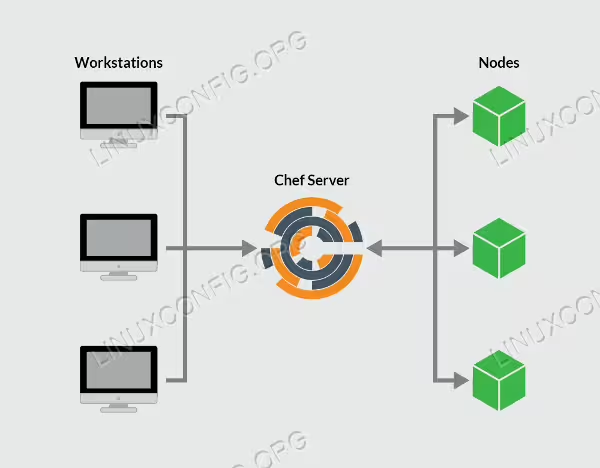
シェフアーキテクチャ。
ソフトウェアの要件と使用される規約
Chefサーバーのインストールと構成
Chefサーバーは、Chef管理下にあるすべてのワークステーションとノード間の相互作用の中心です。ワークステーションでの設定コードに対する変更はChefサーバーにプッシュされ、その後、ノードのchef-clientによってプルされて設定が適用されます。
以下のコマンドを実行して最新のChefサーバーをダウンロードしてください:
wget https://packages.chef.io/files/stable/chef-server/12.18.14/ubuntu/18.04/chef-server-core_12.18.14-1_amd64.deb
次のコマンドでサーバーパッケージをインストールしてください:
dpkg -i chef-server-core_*.deb
Chefサーバーには、chef-server-ctlというコマンドラインユーティリティが含まれています。chef-server-ctlを実行して、Chefサーバーサービスを開始します。
chef-server-ctl reconfigure
シェフサーバーの設定が成功すると、以下のメッセージが表示され、シェフサーバーの実行状態を確認します。
Chef Client finished, 493/1100 resources updated in 12 minutes 02 seconds
Chef Server Reconfigured!
root@ubuntubox1:~# chef-server-ctl status
run: bookshelf: (pid 1435) 6644s; run: log: (pid 1440) 6644s
run: nginx: (pid 1235) 6653s; run: log: (pid 1744) 6631s
run: oc_bifrost: (pid 1196) 6657s; run: log: (pid 1203) 6657s
run: oc_id: (pid 1220) 6655s; run: log: (pid 1227) 6655s
run: opscode-erchef: (pid 4376) 6432s; run: log: (pid 1508) 6644s
run: opscode-expander: (pid 1335) 6648s; run: log: (pid 1431) 6646s
run: opscode-solr4: (pid 1244) 6650s; run: log: (pid 1285) 6649s
run: postgresql: (pid 1176) 6659s; run: log: (pid 1180) 6659s
run: rabbitmq: (pid 4188) 6443s; run: log: (pid 1748) 6631s
run: redis_lb: (pid 27397) 6931s; run: log: (pid 1735) 6632s
root@ubuntubox1:~#
シェフユーザーと組織を作成する
ワークステーションとノードをChefサーバーにリンクさせるために、管理者と組織を作成し、関連するRSA秘密鍵を用意します。
ホームディレクトリから、鍵を保存するために.chefディレクトリを作成します。
mkdir .chef
ユーザーを作成するには chef-server-ctl を使用します。この例では、次の項目を必要に応じて変更してください:USER_NAME、FIRST_NAME、LAST_NAME、EMAIL、および PASSWORD。USER_NAME.pemを調整し、.pem拡張子はそのままにしてください。
chef-server-ctl user-create USER_NAME FIRST_NAME LAST_NAME EMAIL 'PASSWORD' --filename ~/.chef/USER_NAME.pemroot@ubuntubox1:~# chef-server-ctl user-create chefadmin Chef Administrator chefadmin@@ubuntubox1.com '*******' --filename ~/.chef/chefadmin.pem
Chefサーバー上のすべてのユーザーのリストを見るには、次のコマンドを入力してください:
root@ubuntubox1:~# chef-server-ctl user-list
chefadmin
pivotal
組織を作成し、前のステップで作成したユーザーを追加します。ORG_NAMEを組織の短い識別子に、ORG_FULL_NAMEを組織の完全な名前に、USER_NAMEを上記のステップで作成したユーザー名に、ORG_NAME.pemを組織の短い識別子の後に.pemを付けたものに置き換えます。
chef-server-ctl org-create ORG_NAME "ORG_FULL_NAME" --association_user USER_NAME --filename ~/.chef/ORG_NAME.pemroot@ubuntubox1:~# chef-server-ctl org-create chef-on-ubuntu "Chef Infrastructure on Ubuntu 18.04" --association_user chefadmin --filename ~/.chef/chef-on-ubuntu.pem
Chefサーバー上のすべての組織のリストを表示するには、次のコマンドを使用します:
root@ubuntubox1:~# chef-server-ctl org-list
chef-on-ubuntu
Chefサーバーがインストールされ、RSAキーが生成されたので、Chefワークステーションの設定を開始します。ワークステーションは、ノードのためのすべての主要な設定が作成される場所です。
Chef ワークステーションをインストールして構成する
シェフワークステーションは、レシピ、クックブック、属性、およびノードを管理するために必要なその他の変更を作成および設定する場所です。これは任意のOSを実行しているローカルマシンであることもできますが、リモートサーバーをワークステーションとして維持することにはいくらかの利点があり、どこからでもアクセス可能です。
このセクションでは、Chefの開発キットであるChefDKに含まれるすべてのツールを提供するChef Workstationパッケージをダウンロードしてインストールします。
最新のChef Workstationをダウンロードしてください:
root@ubuntubox2:~# wget  https://packages.chef.io/files/stable/chef-workstation/0.2.43/ubuntu/18.04/chef-workstation_0.2.43-1_amd64.deb
--2019-06-03 13:35:51--  https://packages.chef.io/files/stable/chef-workstation/0.2.43/ubuntu/18.04/chef-workstation_0.2.43-1_amd64.deb
Resolving packages.chef.io (packages.chef.io)... 151.101.142.110
Connecting to packages.chef.io (packages.chef.io)|151.101.142.110|:443... connected.
HTTP request sent, awaiting response... 200 OK
Length: 129713682 (124M) [application/x-debian-package]
Saving to: ‘chef-workstation_0.2.43-1_amd64.deb’

chef-workstation_0.2.43-1_amd64.deb       100%[=====================================================================================>] 123.70M  1.51MB/s    in 80s

2019-06-03 13:37:17 (1.55 MB/s) - ‘chef-workstation_0.2.43-1_amd64.deb’ saved [129713682/129713682]
Chef ワークステーションをインストールします:
root@ubuntubox2:~# dpkg -i chef-workstation_*.deb
Selecting previously unselected package chef-workstation.
(Reading database ... 117468 files and directories currently installed.)
Preparing to unpack chef-workstation_0.2.43-1_amd64.deb ...
Unpacking chef-workstation (0.2.43-1) ...
Setting up chef-workstation (0.2.43-1) ...

To run the experimental Chef Workstation App, use your
platform's package manager to install these dependencies:

        libgconf-2.so.4 => not found
You can then launch the App by running 'chef-workstation-app'.
The App will then be available in the system tray.

Thank you for installing Chef Workstation!
You can find some tips on getting started at https://chef.sh/
今、私たちはシェフリポジトリを作成する必要があります。chef-repoディレクトリは、あなたのシェフクックブックやその他の関連ファイルを保存します。
chef generate repo chef-repo
.chefというサブディレクトリを作成します。.chefサブディレクトリには、Knifeの設定ファイルとChefサーバーとのRSAキー対認証に使用される.pemファイルが保存されます。chef-repoディレクトリに移動します:
root@ubuntubox2:~# mkdir ~/chef-repo/.chef
root@ubuntubox2:~# cd chef-repo
root@ubuntubox2:~/chef-repo#
Chefサーバーとワークステーションおよび/またはノード間の認証は、公開鍵暗号化を使用して完了します。これにより、Chefサーバーは信頼できるマシンとだけ通信することが保証されます。このセクションでは、Chefサーバーのセットアップ時に生成されたRSA秘密鍵がワークステーションにコピーされ、Chefサーバーとワークステーション間の通信を可能にします。
ワークステーションサーバーでRSAキーペアを生成します。このキーペアは、Chefサーバーにアクセスし、その後.pemファイルを転送するために使用されます:
root@ubuntubox2:~# ssh-keygen -b 4096
Generating public/private rsa key pair.
Enter file in which to save the key (/root/.ssh/id_rsa):
Created directory '/root/.ssh'.
Enter passphrase (empty for no passphrase):
Enter same passphrase again:
Your identification has been saved in /root/.ssh/id_rsa.
Your public key has been saved in /root/.ssh/id_rsa.pub.
The key fingerprint is:
SHA256:sR+Nloq6vsc7rX4ZmMInP3SKdk4fYEJH1iLoKNm1YMg root@ubuntubox2.com
The key's randomart image is:
+---[RSA 4096]----+
|.. .  o.         |
|.E+ oo. .        |
| * o.o...        |
|+ o...   o +     |
|.  .. ooS = .    |
|    +o=oo+ .     |
|     Oo+oo.      |
|    ooO.+.       |
|   o=B=*.        |
+----[SHA256]-----+
root@ubuntubox2:~#
ワークステーションノードの公開鍵をChefサーバーノードにアップロードします。
root@ubuntubox2:~# ssh-copy-id root@ubuntubox1.com
/usr/bin/ssh-copy-id: INFO: Source of key(s) to be installed: "/root/.ssh/id_rsa.pub"
/usr/bin/ssh-copy-id: INFO: attempting to log in with the new key(s), to filter out any that are already installed
/usr/bin/ssh-copy-id: INFO: 1 key(s) remain to be installed -- if you are prompted now it is to install the new keys
root@ubuntubox1.com's password:

Number of key(s) added: 1

Now try logging into the machine, with:   "ssh 'root@ubuntubox1.com'"
and check to make sure that only the key(s) you wanted were added.

root@ubuntubox2:~#
scpコマンドを使用して、Chefサーバーからワークステーションに.pemファイルをコピーします。
root@ubuntubox2:~# scp root@ubuntubox1.com:~/.chef/*.pem ~/chef-repo/.chef/
chefadmin.pem                                                                                                                         100% 1674    27.9KB/s   00:00
chef-on-ubuntu.pem                                                                                                                    100% 1674   496.8KB/s   00:00
.chefディレクトリの内容をリストして、ファイルが正常にコピーされたことを確認してください。.pemファイルがリストに表示されるはずです。
root@ubuntubox2:~# ls ~/chef-repo/.chef
chefadmin.pem  chef-on-ubuntu.pem
新しいシェフの料理本を作成する:
root@ubuntubox2:~# chef generate cookbook chef-first-cookbook
Hyphens are discouraged in cookbook names as they may cause problems with custom resources. See https://docs.chef.io/ctl_chef.html#chef-generate-cookbook for more information.
Generating cookbook chef-first-cookbook
- Ensuring correct cookbook file content
- Ensuring delivery configuration
- Ensuring correct delivery build cookbook content

Your cookbook is ready. Type `cd chef-first-cookbook` to enter it.

There are several commands you can run to get started locally developing and testing your cookbook.
Type `delivery local --help` to see a full list.

Why not start by writing a test? Tests for the default recipe are stored at:

test/integration/default/default_test.rb

If you'd prefer to dive right in, the default recipe can be found at:

recipes/default.rb
シェフレポを生成し、新しく作成されたディレクトリに移動してください:
chef generate app chef-repo
cd chef-repo
ナイフの設定とクライアントノードのブートストラップ
ナイフの設定ファイルを作成するには、~/chef-repo/.chef ディレクトリに移動し、お好みのテキストエディタを使って config.rb という名前のファイルを作成してください。
次の設定をconfig.rbファイルにコピーしてください:
current_dir = File.dirname(__FILE__)
log_level                :info
log_location             STDOUT
node_name                'node_name'
client_key               "USER.pem"
validation_client_name   'ORG_NAME-validator'
validation_key           "ORGANIZATION-validator.pem"
chef_server_url          'https://ubuntubox1.com/organizations/ORG_NAME'
cache_type               'BasicFile'
cache_options( :path => "#{ENV['HOME']}/.chef/checksums" )
cookbook_path            ["#{current_dir}/../cookbooks"]
node_nameの値は、Chefサーバーで作成されたユーザー名である必要があります。
client_keyの下のUSER.pemを、Chefユーザーの.pemファイルを反映するように変更してください。
validation_client_nameは、組織のORG_NAMEに- validatorを付けたものである必要があります。
validation_keyパス内のORGANIZATION-validator.pemは、ORG_NAMEに-validator.pemを付けたものである必要があります。
最後に、chef_server_urlはChefサーバーのドメインで、/organizations/ORG_NAMEを追加する必要があります。ORG_NAMEを組織の名前に置き換えることを忘れないでください。
シェフリポジトリディレクトリに移動し、サーバーから必要なSSL証明書をコピーします。
root@ubuntubox2:~/chef-repo/.chef# cd ..
root@ubuntubox2:~/chef-repo# knife ssl fetch
WARNING: Certificates from ubuntubox1.com will be fetched and placed in your trusted_cert
directory (/root/chef-repo/.chef/trusted_certs).

Knife has no means to verify these are the correct certificates. You should
verify the authenticity of these certificates after downloading.

Adding certificate for ubuntubox1_com in /root/chef-repo/.chef/trusted_certs/ubuntubox1_com.crt
client list を実行して、config.rb が正しく設定されていることを確認してください。このコマンドはバリデーター名を出力するはずです。
root@ubuntubox2:~/chef-repo# knife client list
chef-on-ubuntu-validator
ノードをブートストラップすると、ノードにChefクライアントがインストールされ、ノードが検証されます。これにより、ノードはChefサーバーから読み取ることができ、chef-clientによって検出された必要な設定の更新をダウンロードして適用できます。
ワークステーションから、~/chef-repo/.chefディレクトリに移動します:
cd ~/chef-repo/.chef
クライアントノードを、クライアントノードのルートユーザーまたは特権を持つユーザーを使用してブートストラップします:
root@ubuntubox2:~/chef-repo/.chef# knife bootstrap ubuntubox3.com -x root -P ******* --node-name chef-client-node
Creating new client for chef-client-node
Creating new node for chef-client-node
Connecting to ubuntubox3.com
ubuntubox3.com -----> Installing Chef Omnibus (-v 14)
ubuntubox3.com downloading https://omnitruck-direct.chef.io/chef/install.sh
ubuntubox3.com   to file /tmp/install.sh.2019/install.sh
ubuntubox3.com trying wget...
ubuntubox3.com ubuntu 18.04 x86_64
ubuntubox3.com Getting information for chef stable 14 for ubuntu...
ubuntubox3.com downloading https://omnitruck-direct.chef.io/stable/chef/metadata?v=14&p=ubuntu&pv=18.04&m=x86_64
ubuntubox3.com   to file /tmp/install.sh.2023/metadata.txt
ubuntubox3.com trying wget...
ubuntubox3.com sha1     ed9b1fcdaf947d9a3d60e6d196308183a082bcff
ubuntubox3.com sha256   9ddcd5ceef19c95ecc1f34bef080c23d9cb42ae8ebc69fd41dcf1c768a6a708f
ubuntubox3.com url      https://packages.chef.io/files/stable/chef/14.13.11/ubuntu/18.04/chef_14.13.11-1_amd64.deb
ubuntubox3.com version  14.13.11
ubuntubox3.com downloaded metadata file looks valid...
ubuntubox3.com downloading https://packages.chef.io/files/stable/chef/14.13.11/ubuntu/18.04/chef_14.13.11-1_amd64.deb
ubuntubox3.com   to file /tmp/install.sh.2023/chef_14.13.11-1_amd64.deb
ubuntubox3.com trying wget...
ubuntubox3.com Comparing checksum with sha256sum...
ubuntubox3.com Installing chef 14
ubuntubox3.com installing with dpkg...
ubuntubox3.com Selecting previously unselected package chef.
(Reading database ... 117468 files and directories currently installed.)
ubuntubox3.com Preparing to unpack .../chef_14.13.11-1_amd64.deb ...
ubuntubox3.com Unpacking chef (14.13.11-1) ...
ubuntubox3.com Setting up chef (14.13.11-1) ...
ubuntubox3.com Thank you for installing Chef Infra Client! For help getting started visit https://learn.chef.io
ubuntubox3.com Starting the first Chef Client run...
ubuntubox3.com Starting Chef Client, version 14.13.11
ubuntubox3.com resolving cookbooks for run list: []
ubuntubox3.com Synchronizing Cookbooks:
ubuntubox3.com Installing Cookbook Gems:
ubuntubox3.com Compiling Cookbooks...
ubuntubox3.com [2019-06-03T14:01:44+04:00] WARN: Node chef-client-node has an empty run list.
ubuntubox3.com Converging 0 resources
ubuntubox3.com
ubuntubox3.com Running handlers:
ubuntubox3.com Running handlers complete
ubuntubox3.com Chef Client finished, 0/0 resources updated in 05 seconds
Confirm that the node has been bootstrapped by listing the client nodes:
root@ubuntubox2:~/chef-repo/.chef#
ノードが正常にブートストラップされたことを、ノードのリストを表示して確認してください:
root@ubuntubox2:~/chef-repo/.chef# knife node list
chef-client-node
root@ubuntubox2:~/chef-repo/.chef# knife node show chef-client-node
Node Name:   chef-client-node
Environment: _default
FQDN:        ubuntubox3.com
IP:          192.168.1.107
Run List:
Roles:
Recipes:
Platform:    ubuntu 18.04
Tags:
結論
この詳細な記事では、Chef構成管理ツールについて、その基本的な理解とコンポーネントの概要、インストールおよび設定について学びました。Chefについてさらに学ぶには、Chefのウェブサイト https://www.chef.io/ を訪問してください。